01
Download Input
Create Actions, Multi Action or simply remap your Framer F1 with Input:
*Use the provided cable, if you are using a different cable and device doesn’t connect remember to use a data cable.
02
Using the display
To interact with the display you will need to use the Fn button (any) and turn the top dial. The Fn buttons are used in 3 kinds of interactions: widget scroll (Fn + top dial), widget overlay (hold Fn), or widget actions (Fn + top or bottom dial).
By default the 2 dials will perform user defined actions, and will only affect the display when used in conjunction with the Fn button.
03

04
Display indicators

05
Clock settings
To set your clock, navigate to the Clock settings. Select the value to change scrolling with the Top dial and set it with the bottom dial. No confirmation needed, just return to the home screen to get your time properly set.

06
Widget
Timer widget
This is your timer, set your timer period turning the top dial and double press Fn to select and start. You can stop the timer pressing Fn two times (press 2x again to resume) or hold Fn to reset. When the timer ends you can choose the action scrolling with Top dial and pressing Fn two times to select.

07
Widget
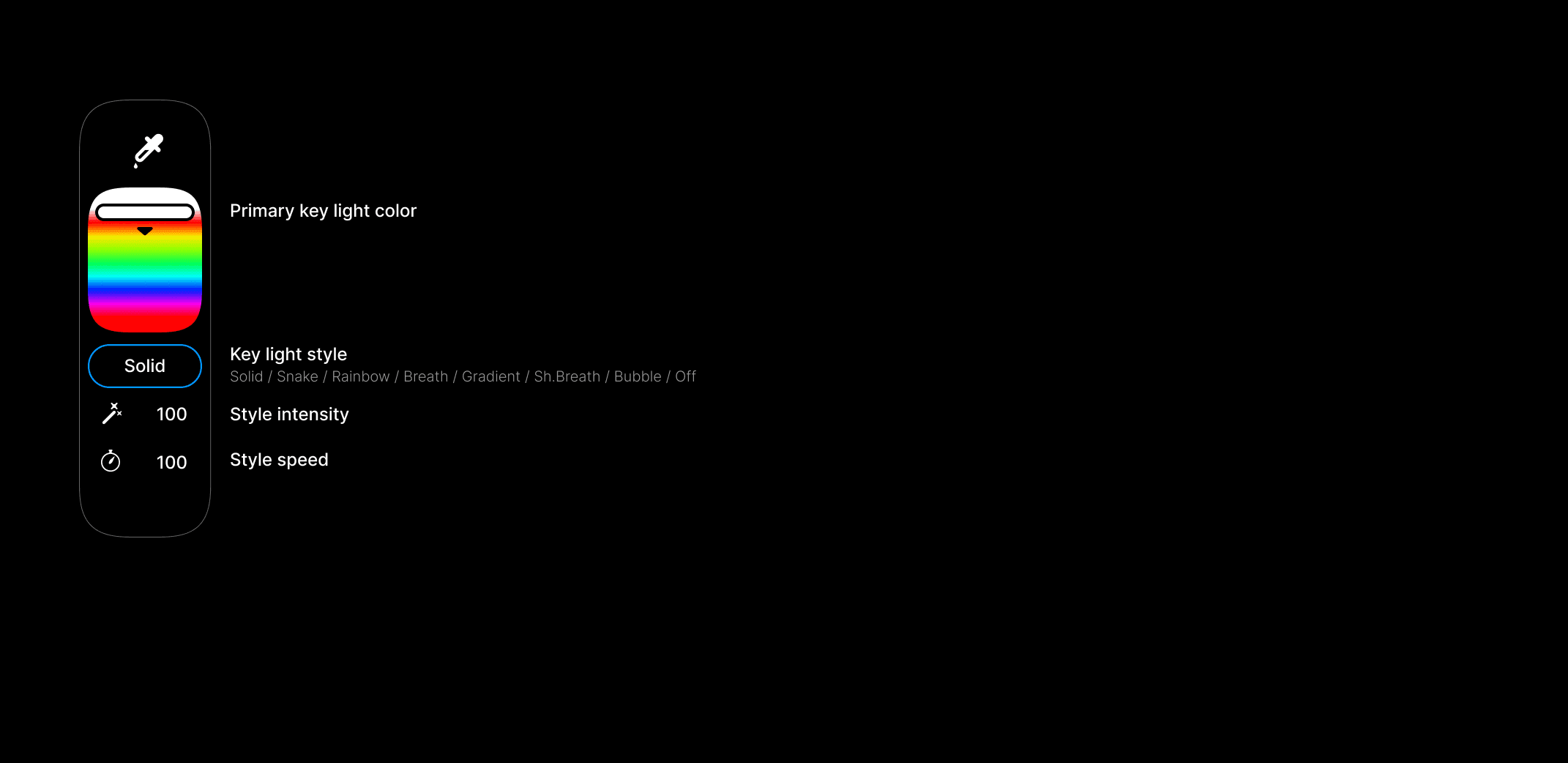
Key Light Style
On this screen you can change the style of the key light and customize the pattern. Once on this screen, use the top dial to change your selection and the bottom dial to change the value.
08
Widget
Screen Wallpaper
On this screen you can change the screen wallpaper. Once on this screen, use the top dial to change your selection and the bottom dial to change the value.

09
Widget
Framer F1 Widgets
The Framer F1 Keyboard has direct integration with the Framer desktop app. To configure which widget is displayed on the Framer F1 keyboard, you will need to be logged into your Framer account via the Framer desktop app, have the app open, and be inside a site project.

10
Connectivity
As you turn on, the keyboard will start in bluetooth mode, you can turn off the bluetooth just plugging in the cable.
11
Bluetooth pairing
Without any cable plugged, hold Fn+1 (or 2,3) to pair the Framer F1 to your device. If you get any trouble pairing it, go to the pairing settings screen to check the bluetooth and pairing status.

12
Toggle layers
Use Fn+Q | W | E | R | T | Y (Q=1…Y=6) to switch between the layers you made using Input. Max 6 layers available.
13
Toggle profiles
Use Fn+A | S | D (A=1) to switch between profiles you made using Input. Max 6 profiles available.
14
Mac / Win layer style
In Input toggle the Win logo to change to Apple layer visualisation. This will show you the layerstyle using WIN\ALT or OPT\CMD.