01
Télécharger Input
Créez des Actions, des Actions Multiples ou remappez simplement votre Knob1 avec Input :
*Utilisez le câble fourni. Si vous utilisez un câble différent et que Knob1 ne se connecte pas, souvenez-vous d'utiliser un câble de données.
02
3D printable parts
You can find all the printable parts with the link below
*Utilisez le câble fourni. Si vous utilisez un câble différent et que Knob1 ne se connecte pas, souvenez-vous d'utiliser un câble de données.
03
How to assemble
*Utilisez le câble fourni. Si vous utilisez un câble différent et que Knob1 ne se connecte pas, souvenez-vous d'utiliser un câble de données.
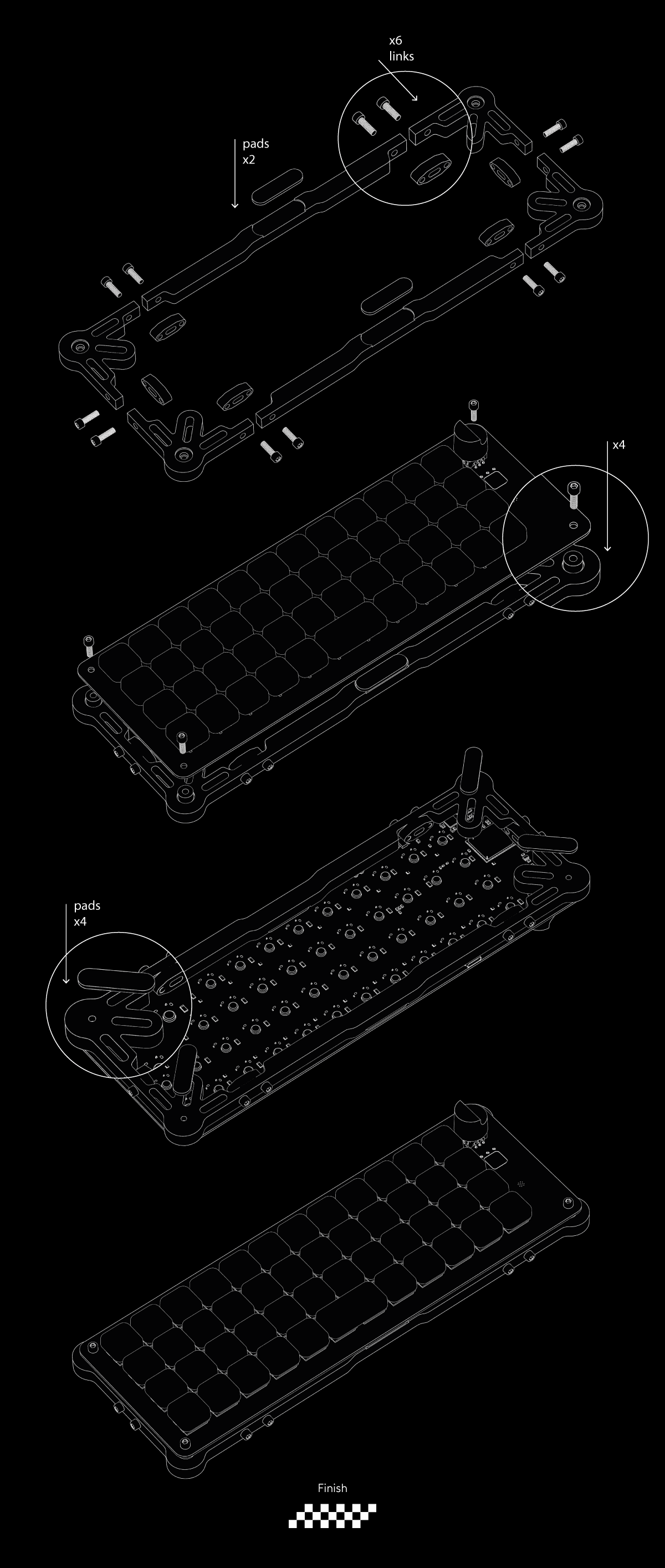
How to do everything else
04
Type numbers & glyphs
You can type numbers, glyphs and more using the Left (layer 2) and Right (layer 3) layers keys beside the spacebar. By holding one of these layers keys, your QWERTY row will type either numbers (layer 3) or glyphs (layer 2).
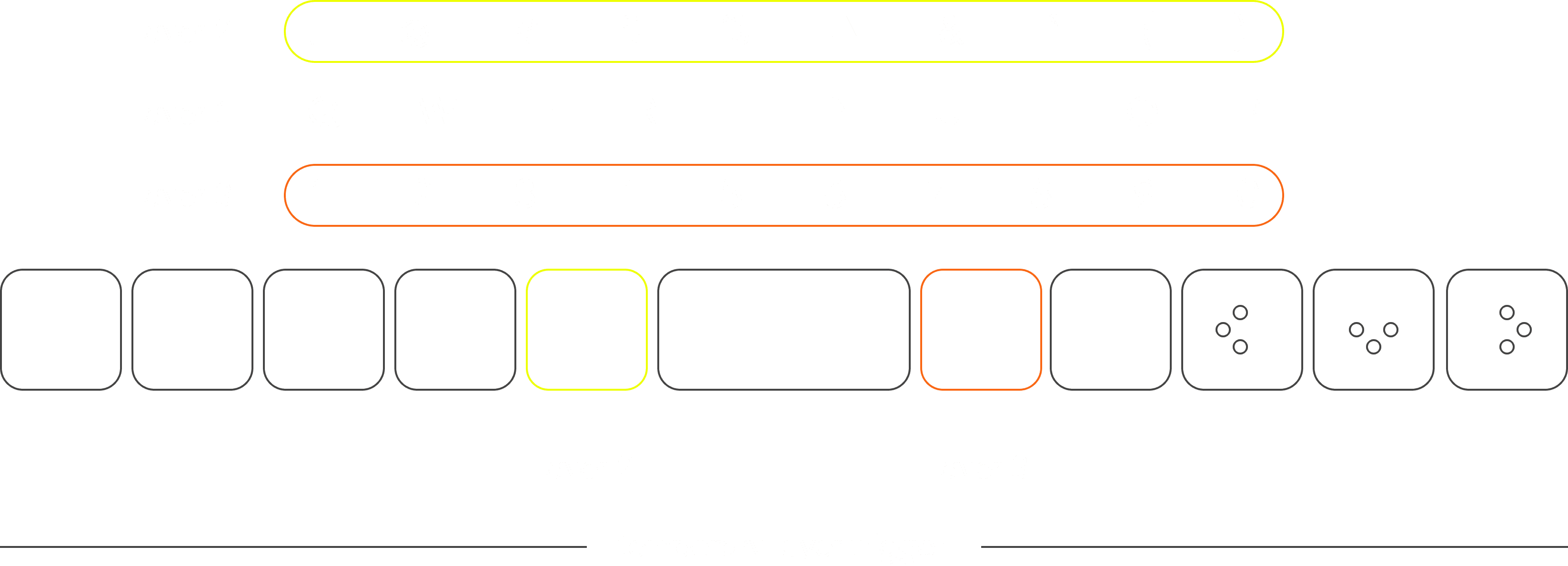
Additionally it's not just the qwerty row that can perform different actions, all of the keys can be remapped to type F keys, Num pad keys, Actions or anything else for that matter. The same principle applies to the Fp layer (bottom left) key.
05
Change layers
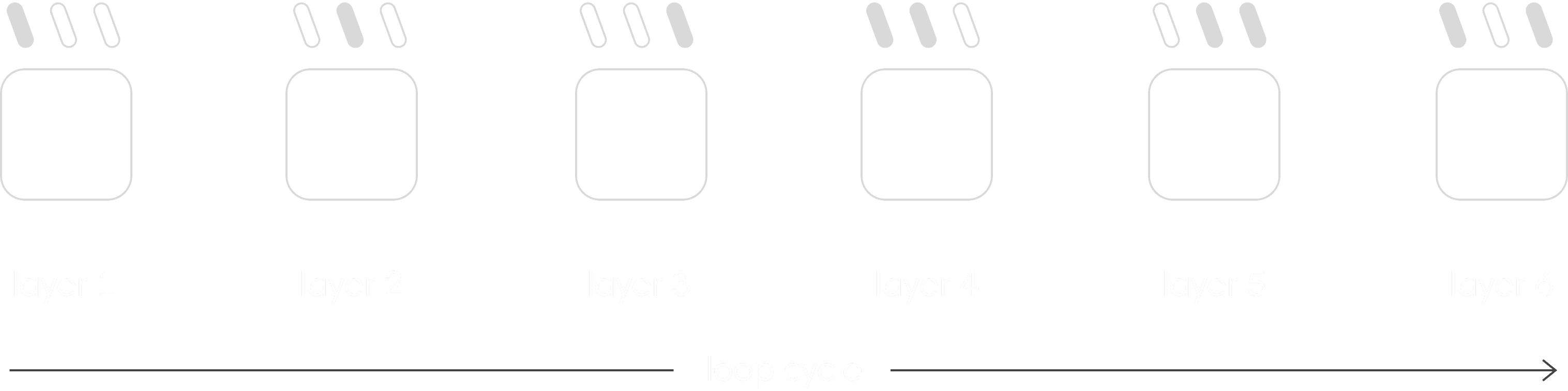
The XYZ Workboard is equipped with a touch sensor on the right side below the dial and has three LEDs that indicate which layer you are currently on (max 6 layers). Tap the sensor to cycle through the layers:
06
Paramètres de l'horloge
Pour régler votre horloge, accédez aux paramètres de l'horloge. Sélectionnez la valeur à modifier en faisant défiler avec le cadran supérieur et réglez-la avec le cadran inférieur. Aucune confirmation n'est nécessaire, retournez simplement à l'écran d'accueil pour que votre heure soit correctement réglée.

To swap profiles using Input, use the profile panel at the top left corner of Input and select the Link icon to make that your current profile. Profiles in the list are ordered from 1 to 6 based on their position.
07
Software-linked layers (AppSense)
Link a software to a specific layer, and your Micro will automatically switch to that layer when the app is in focus.
How to Link a software to a layer?
Click the "link" icon near the layer name.
Then click “Auto detect”.
Now open the app you want to link and keep in focus for 5 sec.
08
Reset your device
If your layout in Input is corrupt you can reset it by following the steps below:
With your XYZ connected to Input open the Setup tab
Click "Reset settings" & confirm
Now your device has been reset