01
Download Input
Create Actions, Multi Action or simply remap your Nomad [E] 2 with Input:
*Use the provided cable, if you are using a different cable and Nomad doesn’t connect remember to use a data cable.
02
Using the display
To interact with the display you will need to use the Fp button. The Fp button is used in 3 kinds ofinteractions: app scroll (Fp + left dial), island scroll (Fp + right dial), widget overlay (hold Fp), or widget actions (Fp + action button).
By default the 3 dials and 4 action buttons will perform user defined actions, and will only affect the display when used in conjunction with the Fp button.

03

04
An island will appear only when a widget is running. The WPM island is always active because it continuously tracks your typing speed.

05

06
You can quickly jump into an app while you're on the Home screen by pressing Fp + an action button (1, 2, 3, or 4) below the display. To pin an app, press and hold Fp and scroll to it. Without releasing Fp, press and hold one of the action buttons to map the app to that position: Top left: 1, Top right: 2, Bottom left: 3, Bottom right: 4.

07
App
This is your home screen, all the info regarding time, caps lock ON/OFF, profile name, layers, battery level are displayed here. You can choose also between big or minimal clock mode in the settings.

08
App
Pomodoro timer
This is your timer, set the work & rest session and press “ok” to start your timer (composed by 4x work/rest sessions). A long beep is performed at the start and end of the session, a quick double bip when you pass from a session to another.
Fp overlay: Pause/play, skip session, exit

09
App
Kebogotchi
A tiny virtual companion that keeps track of your WPM (word per minute) and follows you during your typing sessions. Get above 60wpm and watch this little guy run!
Fp overlay: reset wpm counter

10
Connectivity
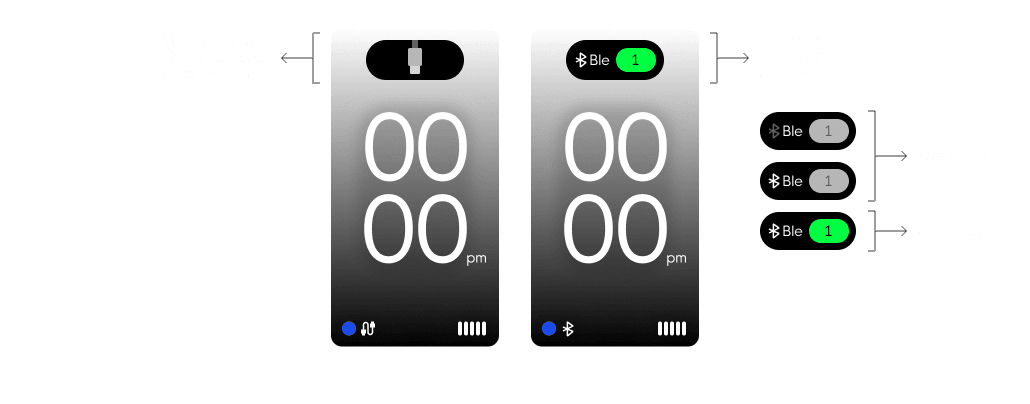
Your Nomad [E] 2 will automatically switch between wired and bluetooth modes when you plug in or unplug the cable. You can also select a specific mode: BLE (channel 1, 2, 3) or wired, by opening the connectivity panel and choosing your preferred channel or mode using the Fp button and the buttons below the display.

11
Toggle layers
Use Fp+Q | W | E | R | T | Y (Q=1…Y=6) to switch between the layers you made using Input. Max 6layers available.
12
Mac / Win layer style
In Input toggle the Win logo to change to Apple layer visualisation. This will show you the layerstyle using WIN\ALT or OPT\CMD.
13
Settings screen
Use the left dial to scroll between all the settings, press OK to enter the sub menu and use the right dial to change the selected value.
14
Soft reset & Factory reset
If you are encountering some issue on your Nomad a soft reset will fix it: remove the space bar cap and press 1 time the “reset” button (the one on the left), after 1 second your keyboard will reboot and be operative again (BLE1,2,3 are not lost). If you need to perform a factory reset goto the “settings” page and press together the last 2 button below the display area: a warning screen will appear, keep pressed OK for 5 seconds until display turn off and wait for the reboot (you loose BLE1,2,3 connections and you need to pair it back again).
