
Let’s get you setup!👇
01
Download Input
Create Actions, Multi Action or simply remap your XYZ Workboard with Input.
*If you’re using a different cable than the one provided and it doesn’t connect, please make sure you’re using a data cable.
02
3D printable parts
You can find all the printable parts with the link below
*Just print the "PRINT_ME" file as everything will be already arrange for you printbed.
03
How to assemble
*2.5mm Allen key required
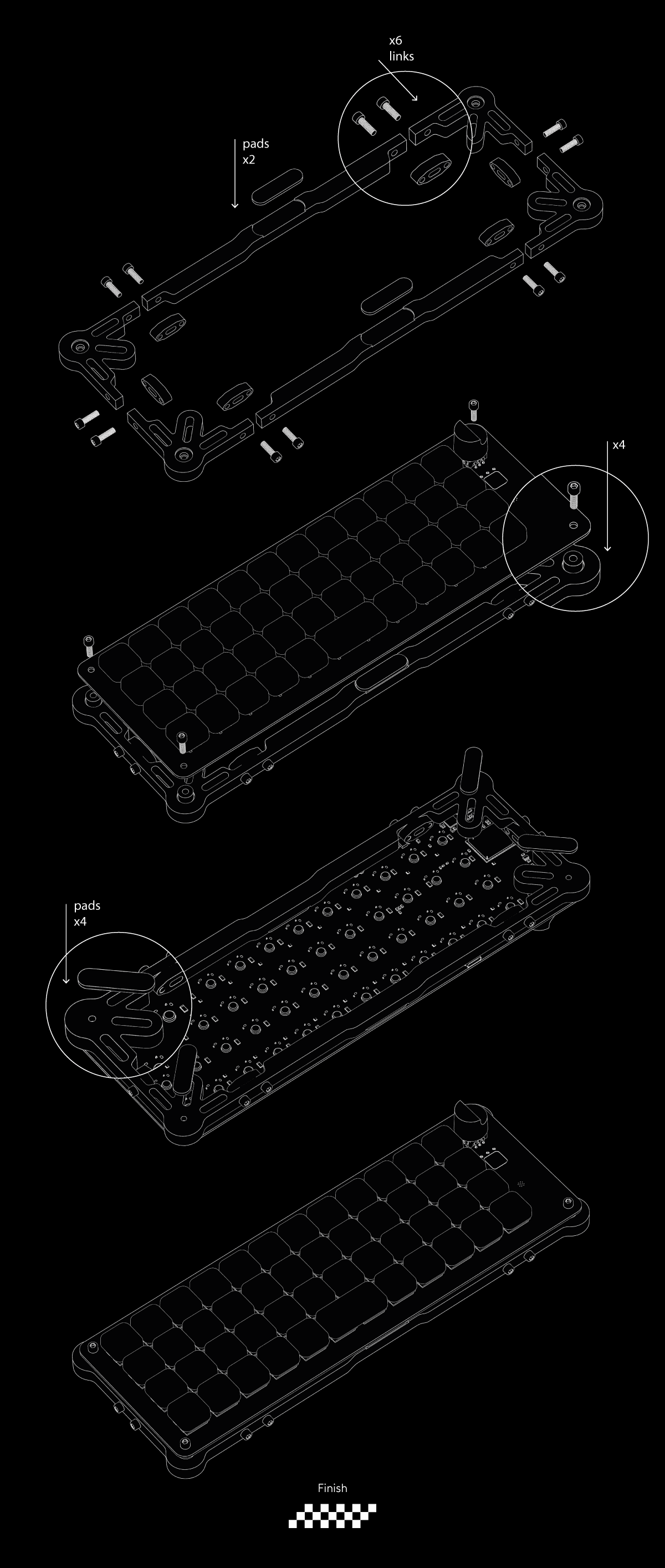
How to do everything else
04
Type numbers & glyphs
You can type numbers, glyphs and more using the Left (layer 2) and Right (layer 3) layers keys beside the spacebar. By holding one of these layers keys, your QWERTY row will type either numbers (layer 3) or glyphs (layer 2).
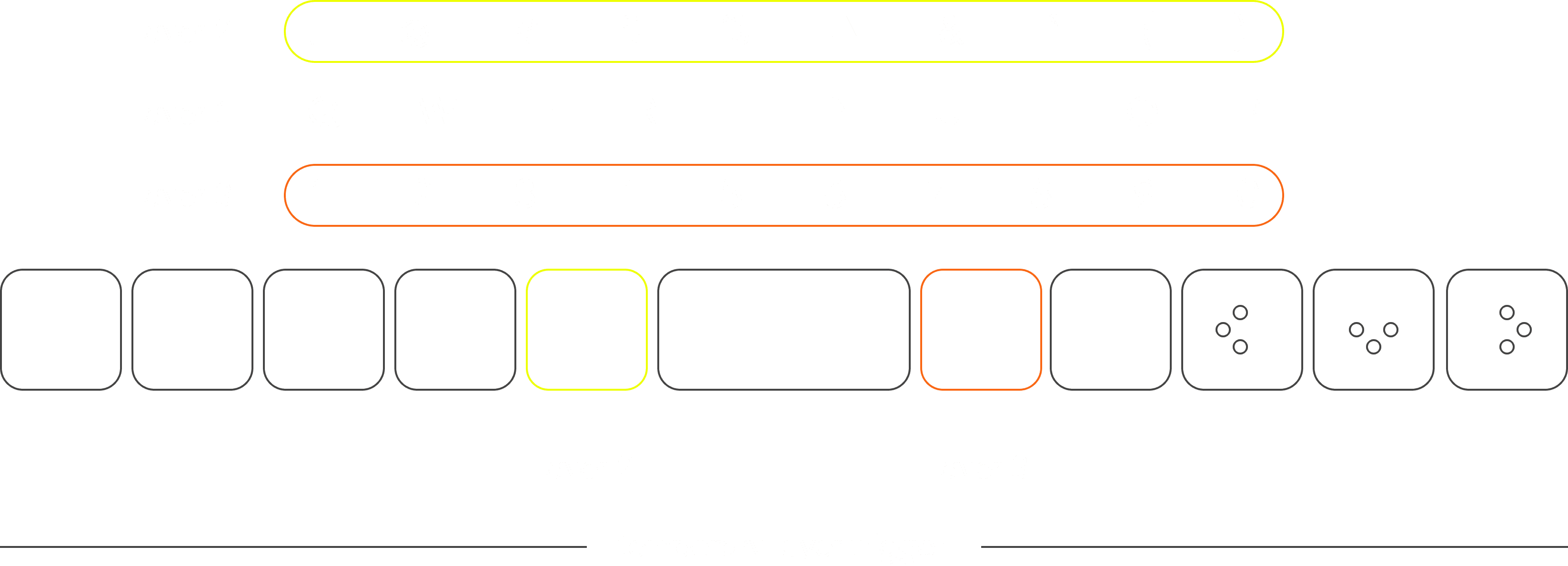
Additionally it's not just the qwerty row that can perform different actions, all of the keys can be remapped to type F keys, Num pad keys, Actions or anything else for that matter. The same principle applies to the Fp layer (bottom left) key.
05
Change layers
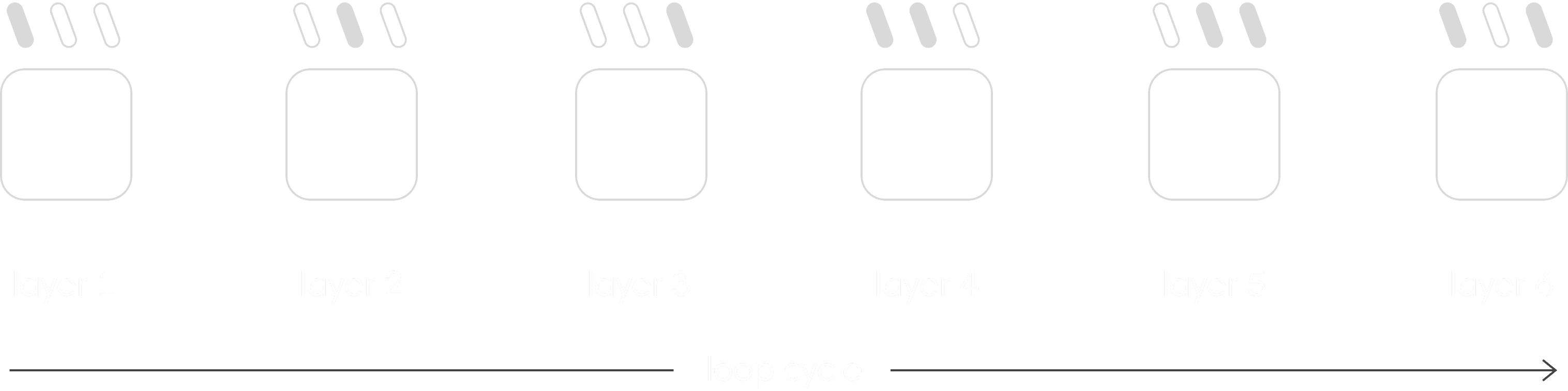
The XYZ Workboard is equipped with a touch sensor on the right side below the dial and has three LEDs that indicate which layer you are currently on (max 6 layers). Tap the sensor to cycle through the layers:
06
Swap profiles
By default hold the Fp key (bottom left) + the right arrow key (bottom right) to swap from profile 1 (Mac) to profile 2 (PC).

To swap profiles using Input, use the profile panel at the top left corner of Input and select the Link icon to make that your current profile. Profiles in the list are ordered from 1 to 6 based on their position.
07
Software-linked layers (AppSense)
Link a software to a specific layer, and your Micro will automatically switch to that layer when the app is in focus.
How to Link a software to a layer?
Click the "link" icon near the layer name.
Then click “Auto detect”.
Now open the app you want to link and keep in focus for 5 sec.
08
Reset your device
If your layout in Input is corrupt you can reset it by following the steps below:
With your XYZ connected to Input open the Setup tab
Click "Reset settings" & confirm
Now your device has been reset